date-website
CTF Admin Guide
Purpose
Publish capture-the-flag competitions, manage individual flags, and review guesses submitted by members.
Manage CTF Events
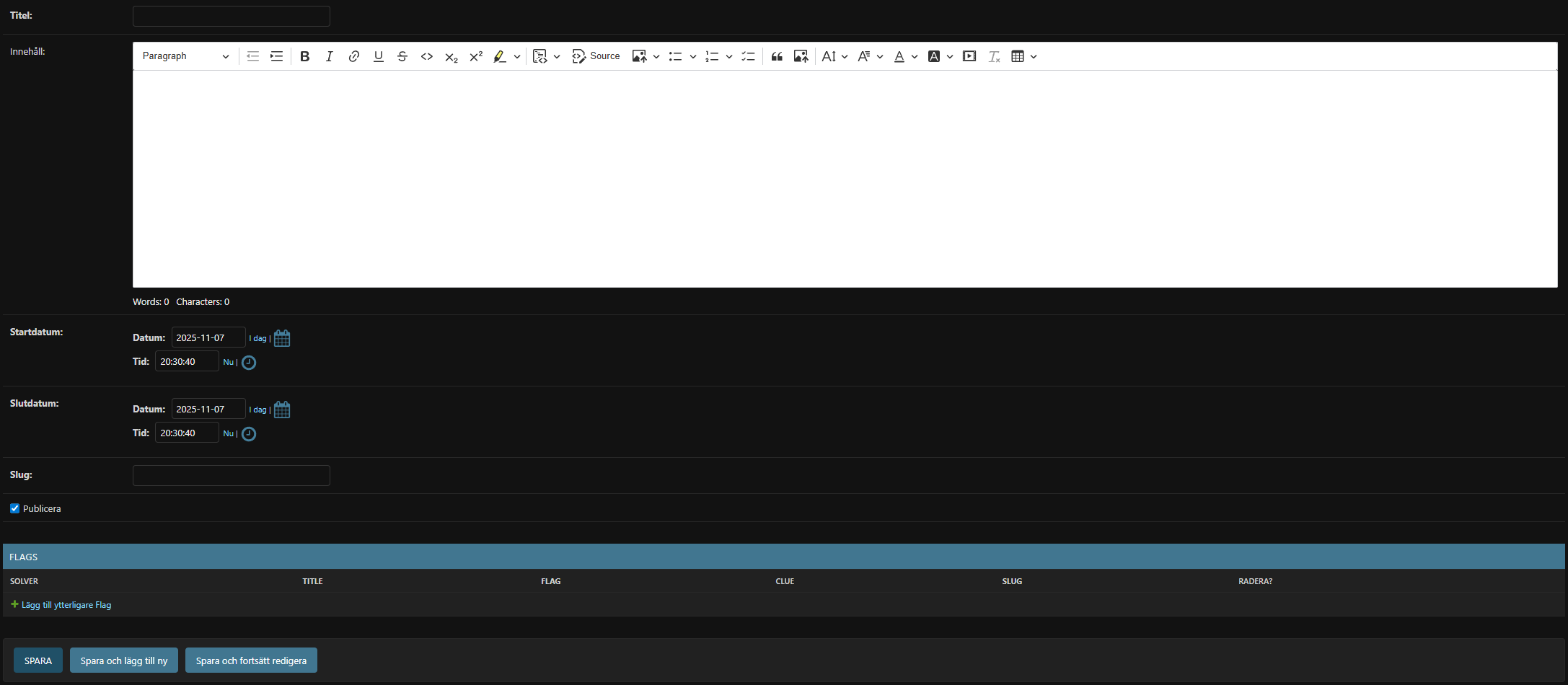
- Go to Ctf › Ctfs in
/admin. - Click Add ctf or edit an existing entry.
- Important fields:
- Titel / Innehåll – shown on
/ctf/and the detail page (rich text supported). - Startdatum / Slutdatum – controls when the challenge opens/closes.
- Slug – URL identifier (auto-populate manually, e.g.,
vaarctf-2024). - Publicera – hide drafts by unchecking.
- Titel / Innehåll – shown on
- Save to unlock the inline Flags table.
Add Flags to a CTF
- In the Flags inline, click Add another Flag for each challenge.
- Fields include:
- Title – visible name shown on the detail page.
- Flag – the exact secret string that validates the challenge (case-sensitive).
- Slug – used in URLs (
/ctf/<ctf_slug>/<flag_slug>/). - Content – CKEditor field text with challenge text and optional hints.
- Solver / Solved date – filled automatically when a member solves the flag. Leave empty when creating.
- Save the CTF to persist flag entries.
Review Guesses
- Open Ctf › Guesses to see every submitted attempt. Use filters by CTF, flag, user, timestamp, or correctness.
- Incorrect guesses appear with
Correct = False; correct guesses are duplicated (once for the solver, plus any subsequent attempts made after completion).
Participant Experience
/ctf/lists published CTFs ordered by publish date.- Each CTF detail page shows all flags. Clicking a flag leads to a submission form where members enter the secret string.
- Once a member solves any flag, the UI indicates “user_solved” so they know they’re done.
Tips
- Double-check the flag string before publishing.
- Coordinate start/end times carefully. Members cannot submit outside the window enforced in the view.
- Encourage members to keep flags secret; the app does not prevent sharing beyond recording who submitted what.